According to LinkedIn, verified members get 60% more profile views on average. From what I’ve seen across creators and Podawaa case studies, verification also tends to:
- increase early profile clicks,
- make connection requests more likely to be accepted, and
- lead to more thoughtful replies in DMs and comments.
In this guide, I’ll walk you through the two official ways to verify your account (with your ID or your work email) and what you can realistically expect after verification.
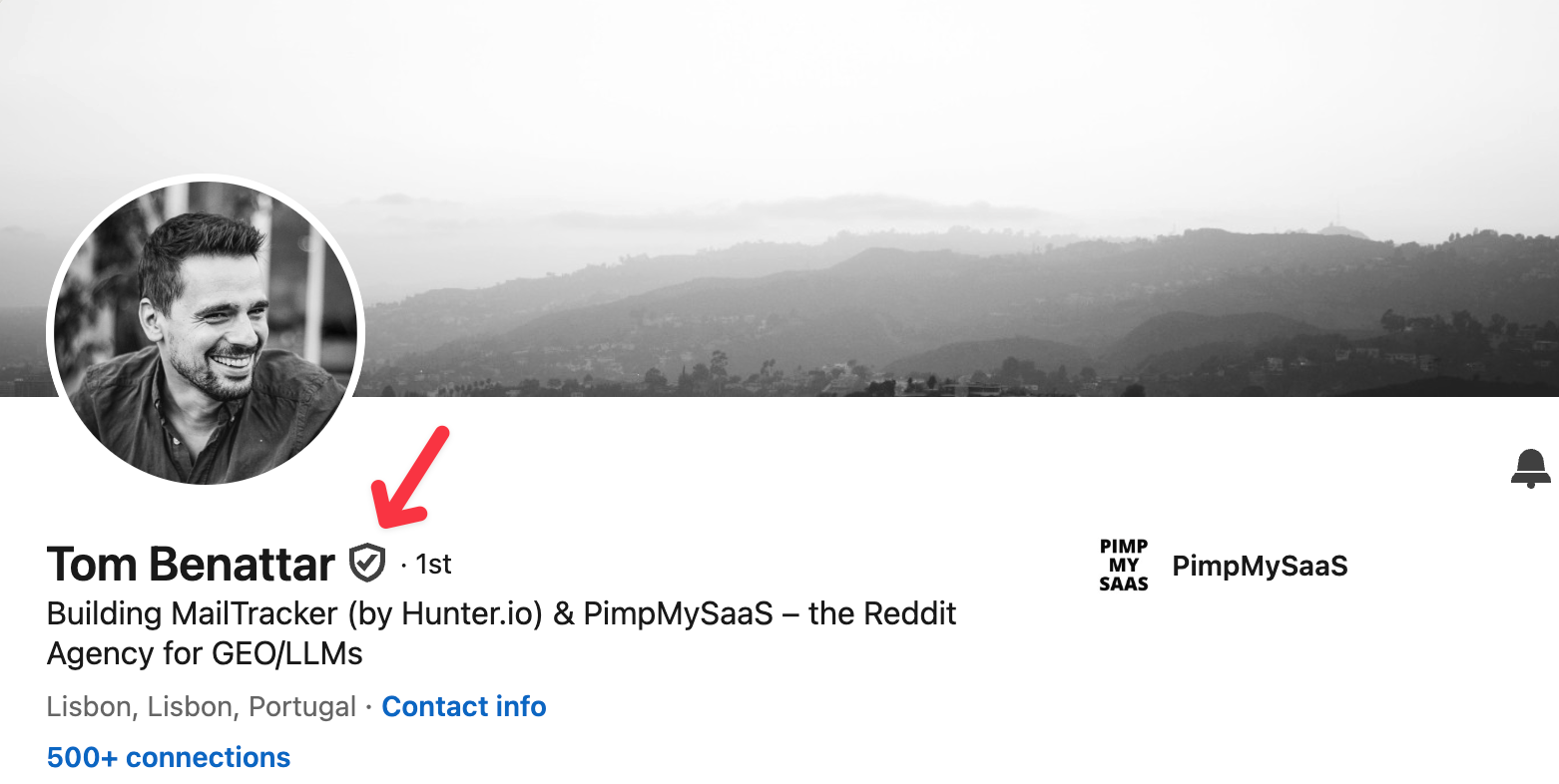
Before we get into the steps, here’s what the verified checkmark looks like on a LinkedIn profile:
How to Verify your LinkedIn Account with ID (Method 1)
The first method is suitable for people who want to verify their personal ID on LinkedIn. It works great for freelancers, founders, creators, consultants, students, or job seekers. It also works well if you don’t have a work email.
Keep in mind: this option is not available in all countries. If you don’t see it in your settings, you’ll need to use Method 2 instead.
1. Open your profile menu. Click your profile picture in the top right corner of LinkedIn.
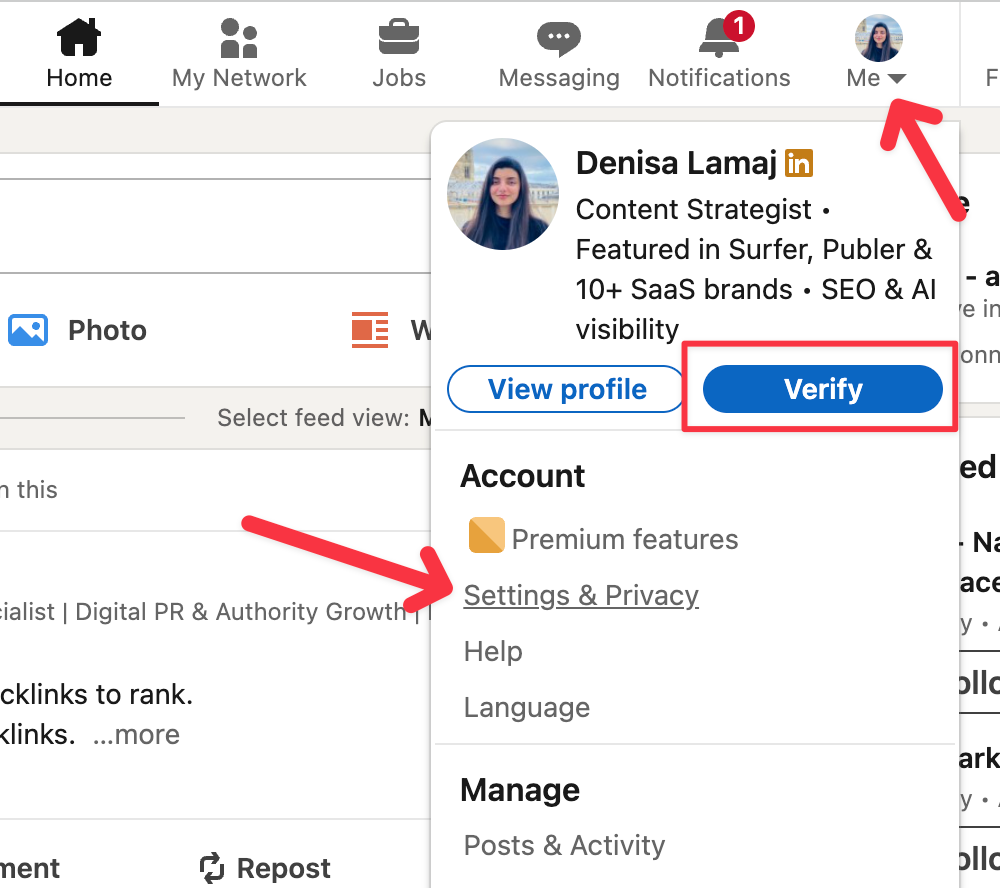
2. Go to Settings & Privacy. In the drop-down menu that appears after clicking your profile picture, select Settings & Privacy.
3. Open Account Preferences. In the left-hand menu inside Settings, click Account preferences.
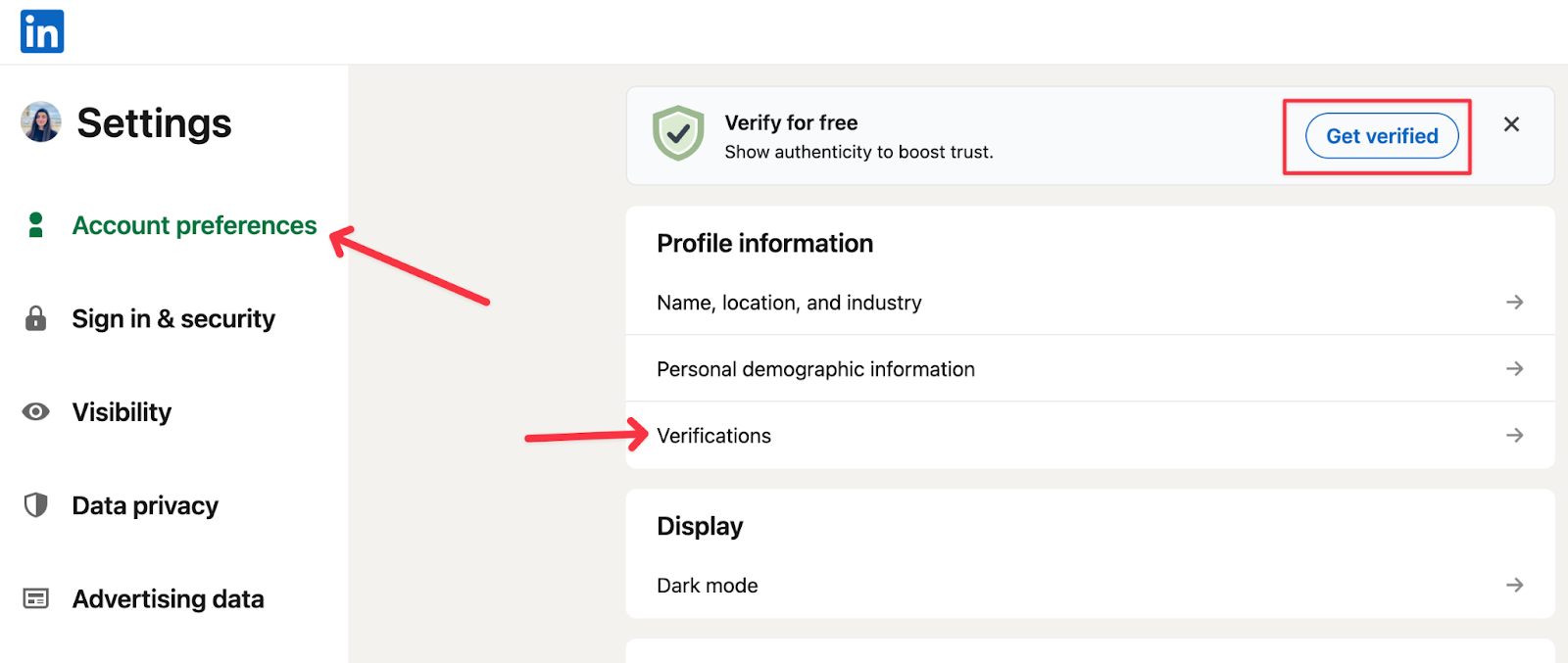
4. Find “Verify your identity.” Scroll down in this section until you see Verify your identity with Persona, then click it.
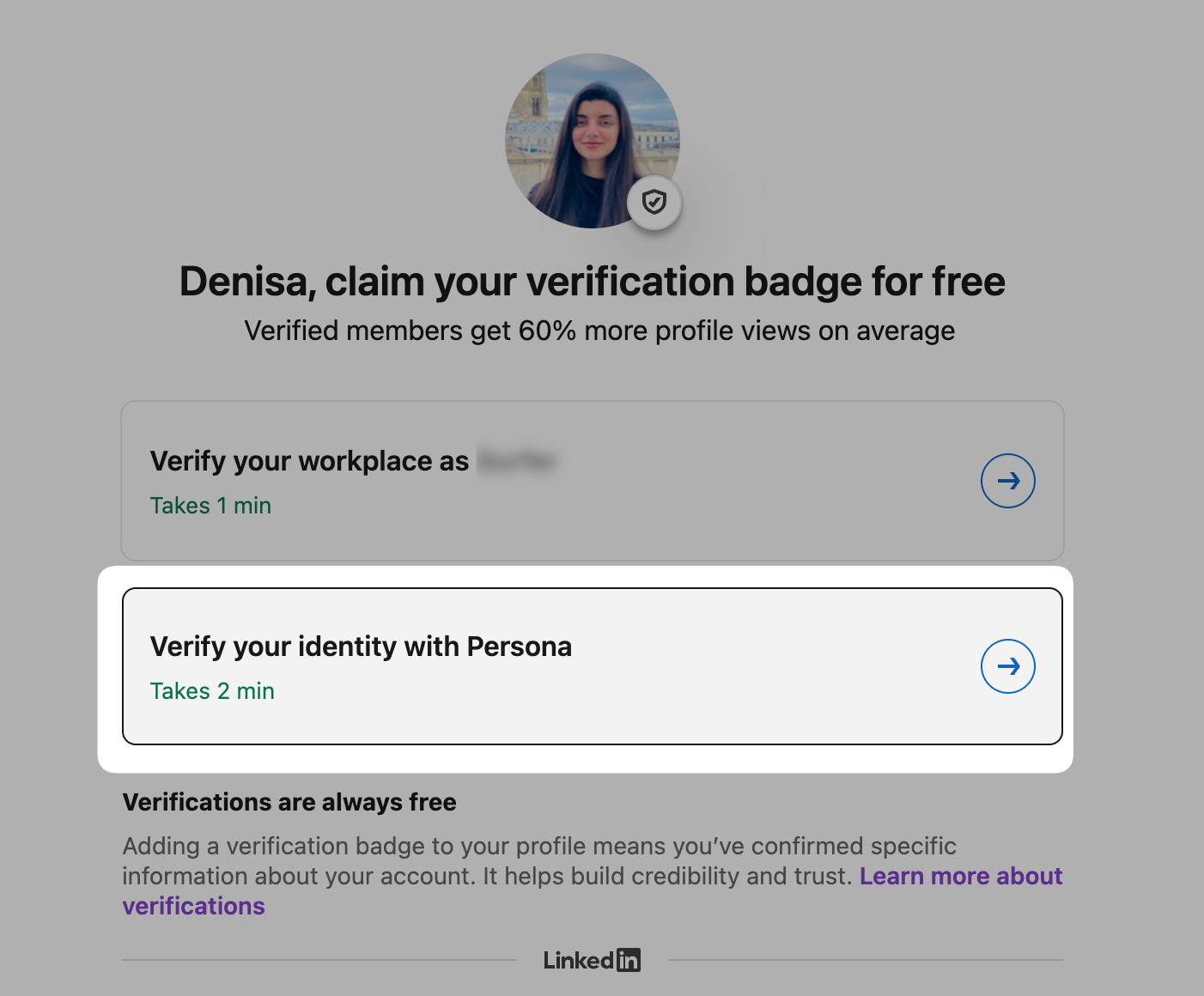
5. Choose your ID type. Select one of the options LinkedIn gives you: for example, a passport, a national ID, or a driver’s license.
6. Scan the QR code and connect to the LinkedIn app. When prompted, scan the QR code shown on your screen with your phone camera. You’ll be redirected to the LinkedIn mobile app. If not, install it and open it.
7. Follow the steps in the LinkedIn app. The app will guide you to take photos of your ID and complete identity checks.
8. Submit and wait for approval. LinkedIn usually reviews this within a few hours to a few days. You’ll get a notification once it’s approved.
How to verify your LinkedIn account with your work email (Method 2)
This method is best for people who are employed by a real company and have an official work email (for example: yourname@company.com).
It is also a suitable option if ID verification is not available in your country or if you simply prefer to verify your workplace instead of your personal identity.
LinkedIn uses this method to confirm that you actually work where your profile says you work.
1. Go to your LinkedIn profile. Click your profile picture in the top left to open your profile page.
2. Add (or check) your current job. Scroll to the Experience section and make sure your current role is added with your official company name.
3. Open Settings & Privacy. Click your profile picture in the top right corner, then select Settings & Privacy from the menu.
4. Go to Account preferences. In the left-hand menu inside Settings, click Account preferences.
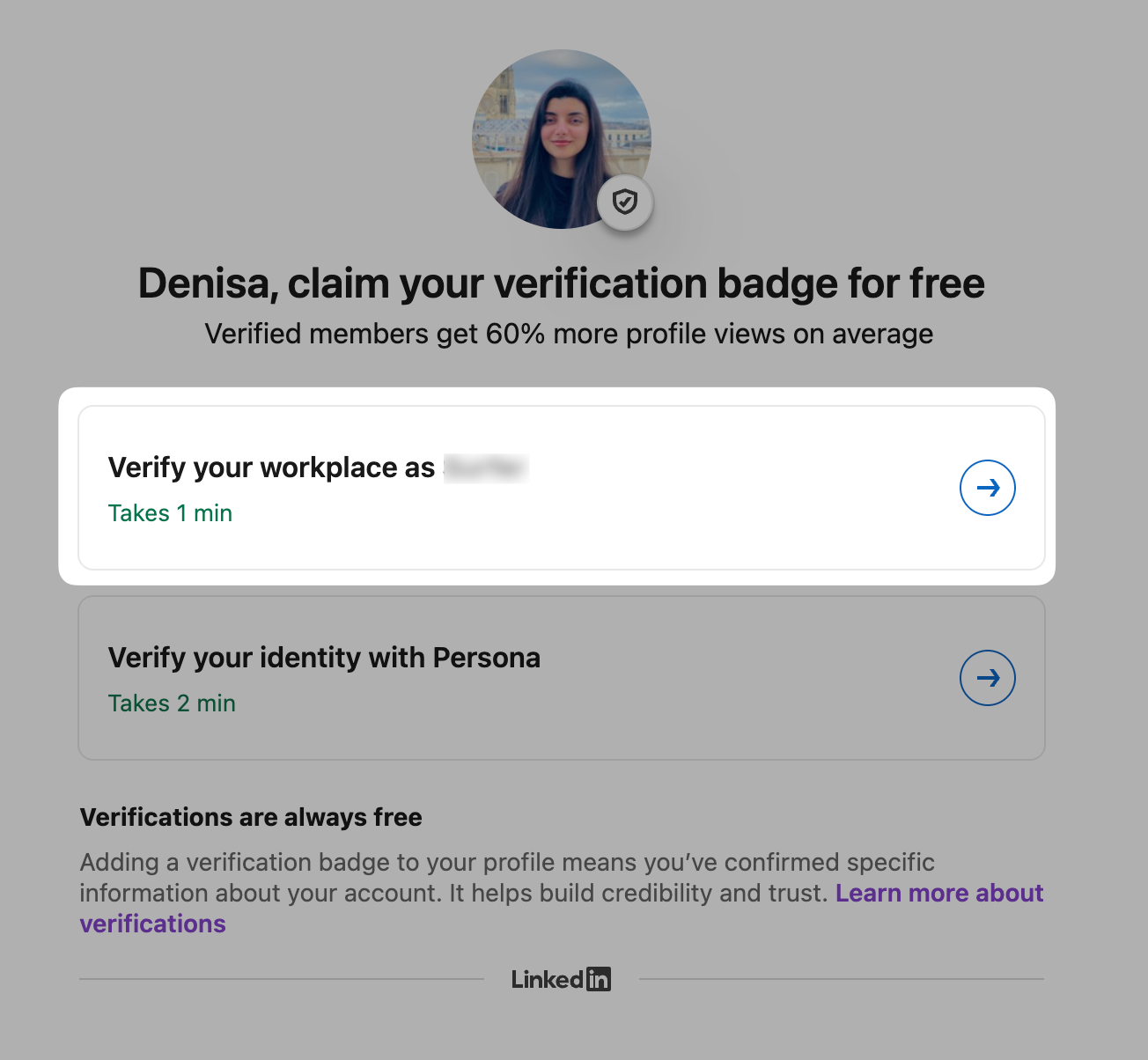
5. Look for workplace verification. Scroll until you see the option related to verifying your workplace or work email.
6. Enter your company email. Type in your official work email (not Gmail, Yahoo, or personal email).
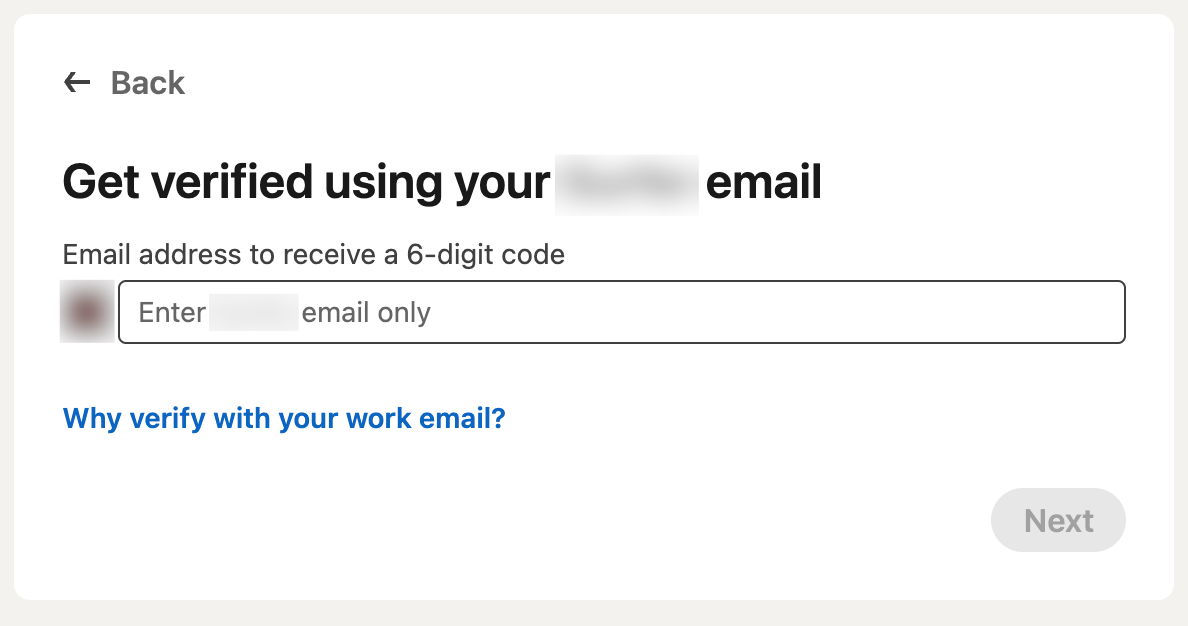
7. Check your inbox. Open the email LinkedIn sends you with the 6-digit code.
8. Wait for confirmation. Once you click the link, LinkedIn updates your profile and confirms your workplace.
What actually changes after LinkedIn verification?
Here’s what typically shifts in practice for creators and professionals after verification:
1. More profile views (especially early)
According to LinkedIn, verified members get 60% more profile views on average. In practice, verified creators often see more profile clicks in the first 24 hours after posting, when people decide whether to trust and engage with you.
2. Higher connection acceptance
Recruiters, founders, and decision-makers are generally more comfortable accepting connection requests from verified profiles because the identity risk feels lower.
3. Better replies in DMs
Verified accounts tend to receive fewer ignored messages and more thoughtful responses, especially for networking or outreach.
4. Stronger credibility with recruiters and clients
If you’re job hunting, freelancing, or consulting, verification removes a layer of doubt about who you are and where you work.
5. Cleaner early engagement on posts
Verification improves trust and usually leads to more profile clicks and better early engagement, but it doesn’t guarantee higher reach for every post.
As an extra step, many creators pair verification with smarter distribution. For example, in one Podawaa case study, a marketer kept the same content but reached 340K impressions by showing their post to the right audience in the first hour.
If your goal is to turn credibility into consistent visibility, tools like Podawaa can help you present your posts to the right audience early, which often leads to more profile views, saves, and meaningful engagement.
Frequently Asked Questions (FAQ)
How many ways are there to verify a LinkedIn account?
There are two ways to verify a LinkedIn account. You can verify either with a government ID (personal identity verification) or with your official work email (workplace verification). You only need one of these.
Which countries can verify LinkedIn with a government ID?
Not all countries can use ID verification. LinkedIn supports ID verification in many places (including the U.S., Canada, Mexico, India, the UK, Australia, Singapore, and many European countries), but availability depends on where your account is registered. If you don’t see the option in your settings, your country is likely not supported yet.
Do I need a passport to verify my LinkedIn identity?
No, you don’t always need a passport. In some countries, you can use a driver’s license or national ID. In others, LinkedIn may require a passport with an NFC chip. The options you see depend on your location.
What if ID verification isn’t available in my country?
Use workplace verification with your company email instead. If you don’t see the ID option in Settings, your best path is to verify your profile using your official work email (Method 2).
Can everyone use workplace verification?
No, only people with an official company email can use it. You need an email from your employer’s domain (for example: yourname@company.com). Personal emails like Gmail or Yahoo won’t work.
Will I get a visible blue badge after verification?
No, identity or workplace verification does not give you a blue badge. LinkedIn’s blue badge is reserved for Top Voice, verified organizations, or selected public figures, not for identity or workplace verification.