

If your LinkedIn posts already live in a spreadsheet, Zapier can publish them for you, so you don't have to copy and paste each one into LinkedIn.
To see how easy it really is, I set it up myself with my personal LinkedIn profile and a Google Sheet, and published a real post. Below, I'll walk you through exactly what I did (including where I got stuck), what else you can do with Zapier on LinkedIn, and where it stops.
Quick answer
- To automate LinkedIn posts with Zapier, create a free Zapier account, keep your posts in a Google Sheet (one post per row), and build a Zap with two steps: Google Sheets: New Spreadsheet Row as the trigger and LinkedIn: Create Share Update as the action.
- Map your post column into the Comment field, test it, and publish the Zap. From then on, every new row becomes a LinkedIn post.
What You Need Before You Start
- A LinkedIn account. I used my personal profile. For a company page, your account needs to be an admin of that page.
- A Zapier account. The free plan covers a two-step Zap like this one (100 tasks a month, and each published post uses one task). New accounts also start with a 14-day trial of Zapier Pro automatically.
- A Google account for the spreadsheet with your posts.
Step 1: Create Your Zapier Account
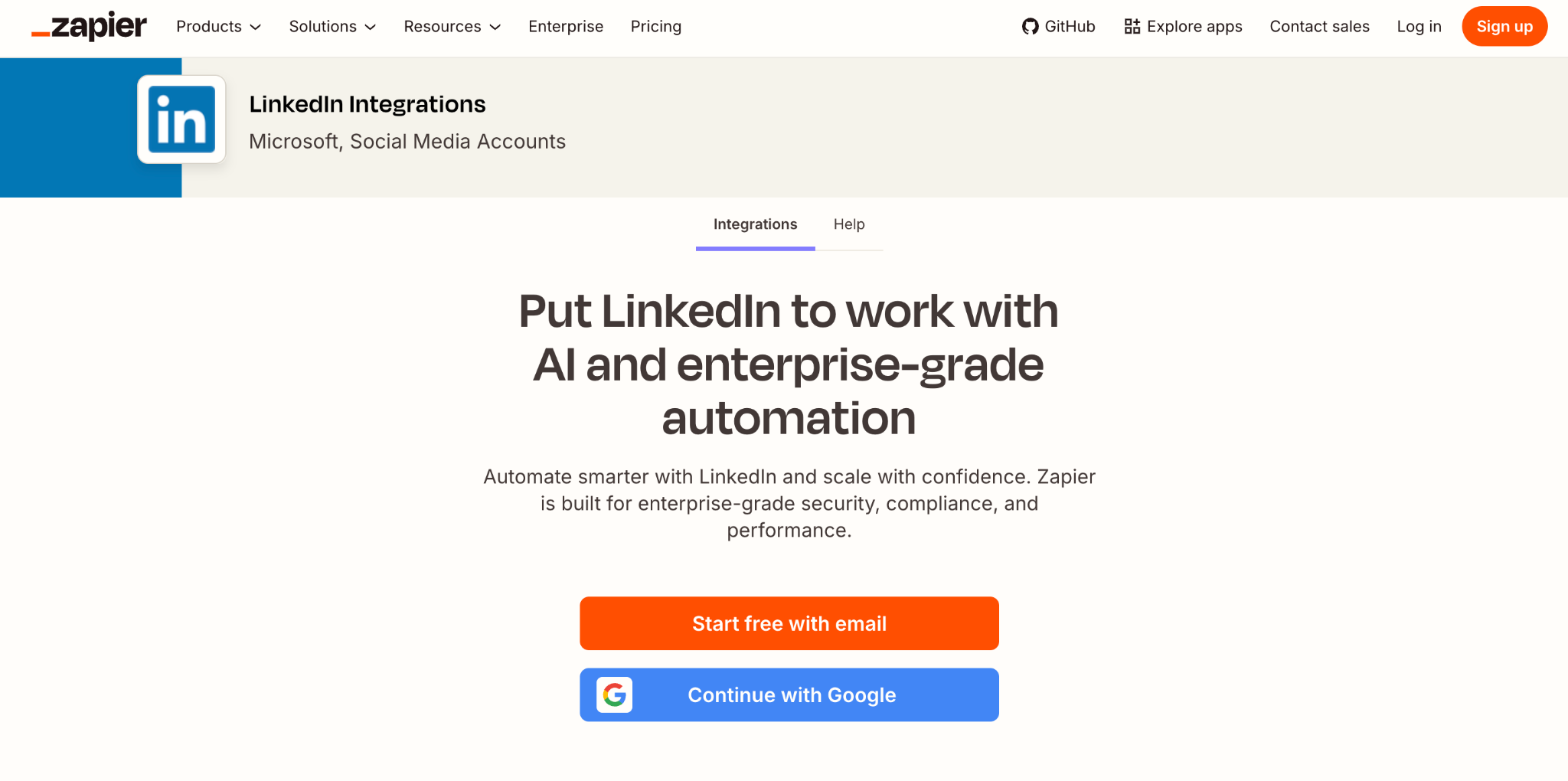
I started from Zapier's LinkedIn integrations page, where you can sign up with your email or continue with Google:
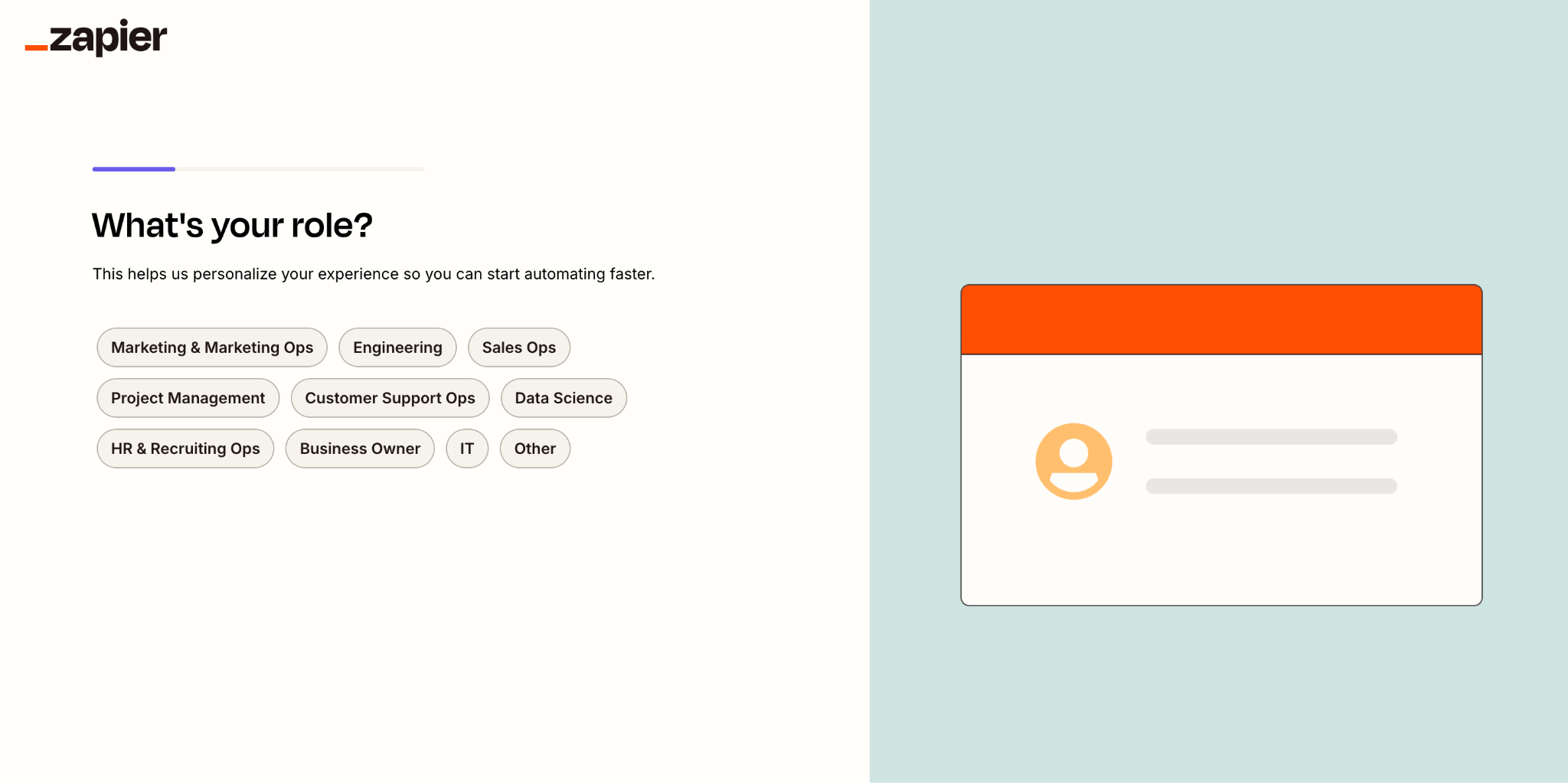
Zapier then asks a couple of quick questions, like your role and your company size. They only change which templates Zapier recommends, so pick whatever fits and move on.
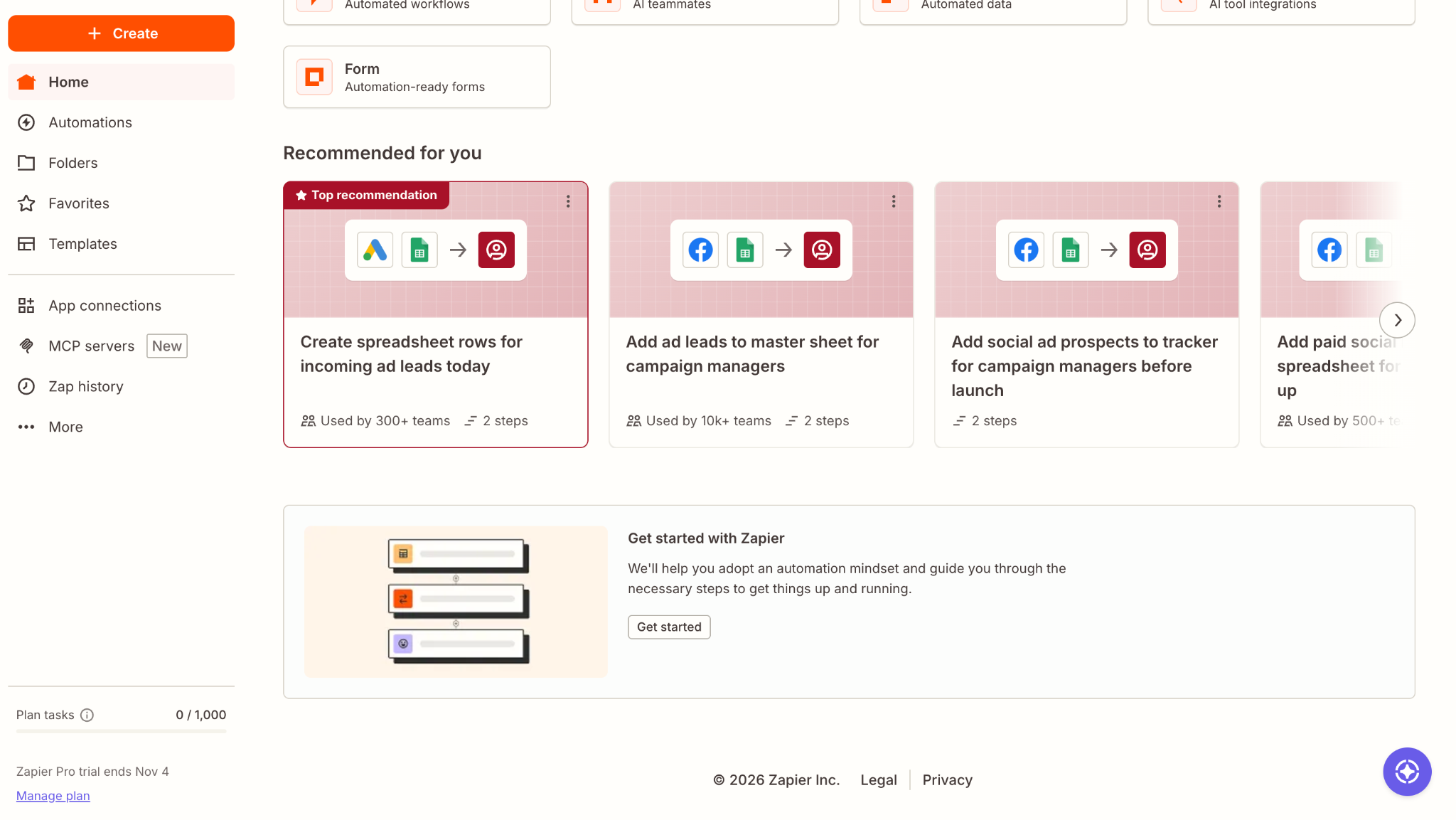
Once you're in, you land on the home page. In the bottom left, you'll see your trial and your tasks (mine showed 0 / 1,000 tasks and a Pro trial for 14 days).
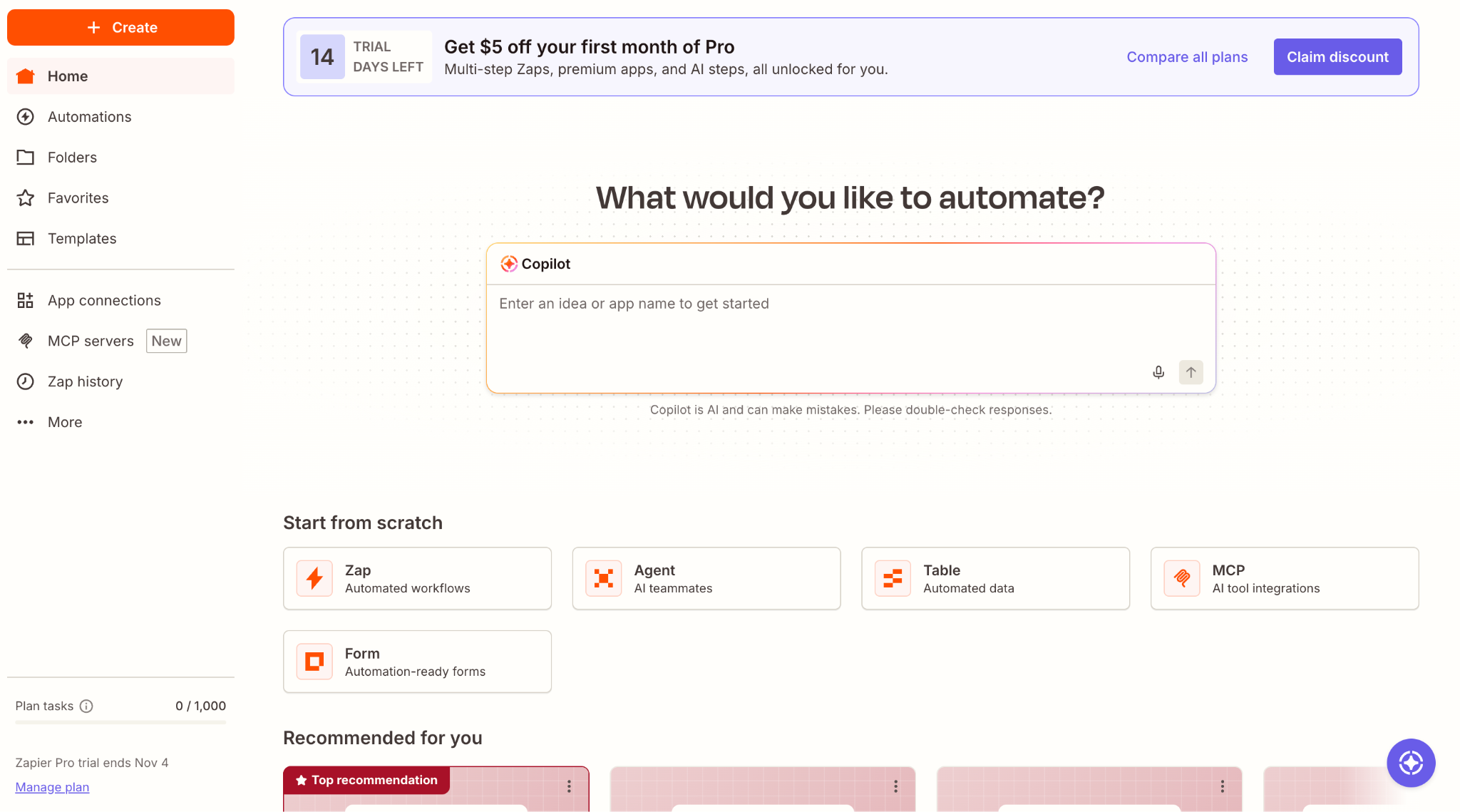
One thing that confused me here: under "Recommended for you," Zapier shows ready-made templates, and I clicked the first one thinking it was a good start. It turned out to be a template for Google Ads leads, nothing to do with LinkedIn. So skip those cards and start your own Zap, as I show in Step 3.
Step 2: Prepare Your Google Sheet
Zapier needs a place to read your posts from, and a Google Sheet is the easiest one to start with. Each row is one post, and the first row holds the column names, which Zapier shows you later when you choose what to publish.
Here's the sheet I created, called LinkedIn posts:
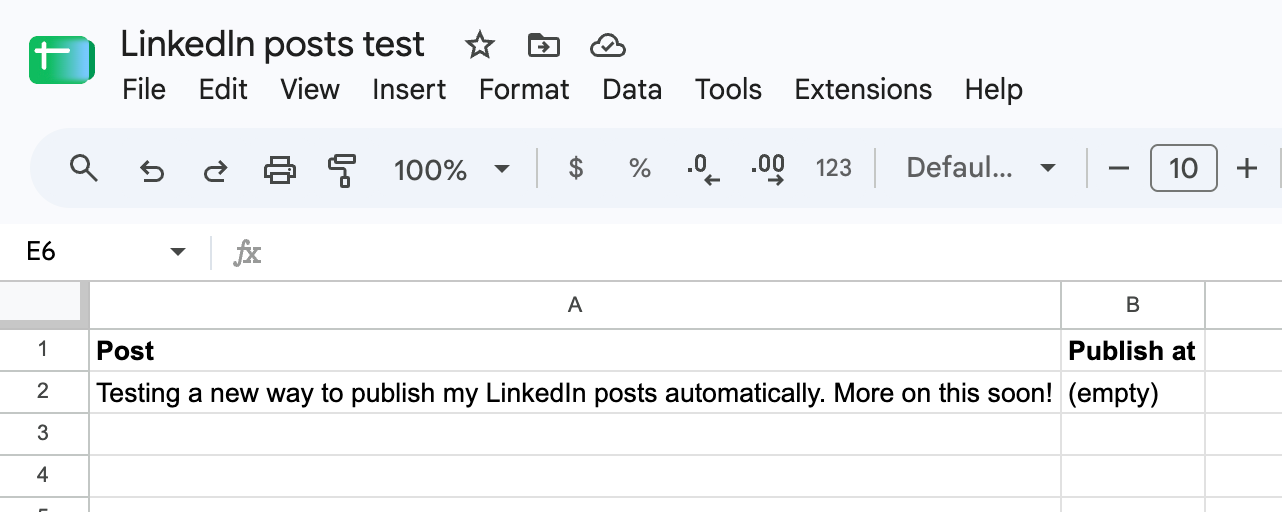
- Post holds the text that goes on LinkedIn, exactly as you want it to appear.
- Publish at is only useful if you want to schedule posts later (more on that below), so you can leave it empty for now.
Write a test post you're happy to see live, because the test in Step 4 publishes it for real.
Step 3: Build the Zap and Connect Your Accounts
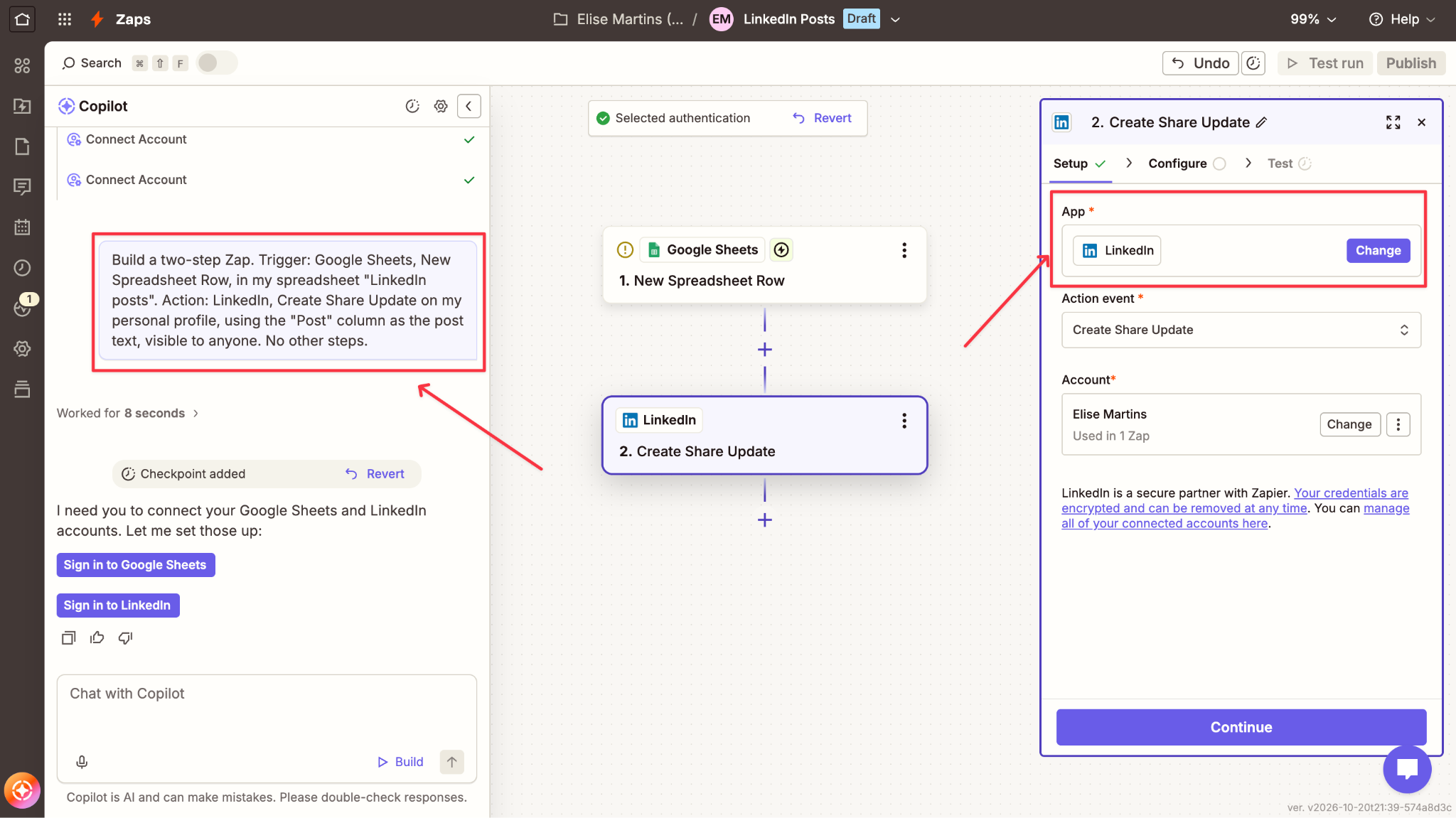
A Zap always has a trigger (what starts it) and an action (what it does). Here, the trigger is a new row in your sheet, and the action is a new LinkedIn post. You can add both steps by hand, but the fastest way I found was Zapier's Copilot: you describe the Zap in plain words, and it builds the steps for you.
From the home page, I clicked + Create → Zap, and in the Copilot chat on the left I wrote:
Build a two-step Zap.
- Trigger: Google Sheets, New Spreadsheet Row, in my spreadsheet "LinkedIn posts".
- Action: LinkedIn, Create Share Update on my personal profile, using the "Post" column as the post text, visible to anyone. No other steps.
Copilot created both steps in a few seconds, then asked me to connect my accounts with two buttons: Sign in to Google Sheets and Sign in to LinkedIn. Each one opens a login window where you allow Zapier access.
Next, click the Google Sheets step and choose your spreadsheet (LinkedIn posts) and the worksheet (usually Sheet1). Then go to Test so Zapier pulls in your test row.
This part matters more than it looks: if you skip the test, Zapier can't show your columns in the next step, and you're left with an empty list.
Step 4: Choose What to Post, Test, and Publish
Now click the LinkedIn step. Each step has three tabs, Setup → Configure → Test, and the important one is Configure.
Honestly, this is where I had to stop and think. The field for your post text is called Comment, which sounds like a comment under a post, but it's actually the post itself. To fill it, click the + in the field (or type /), open 1. New Spreadsheet Row, and choose your Post column. You'll see your test text next to it, so you know you picked the right one.
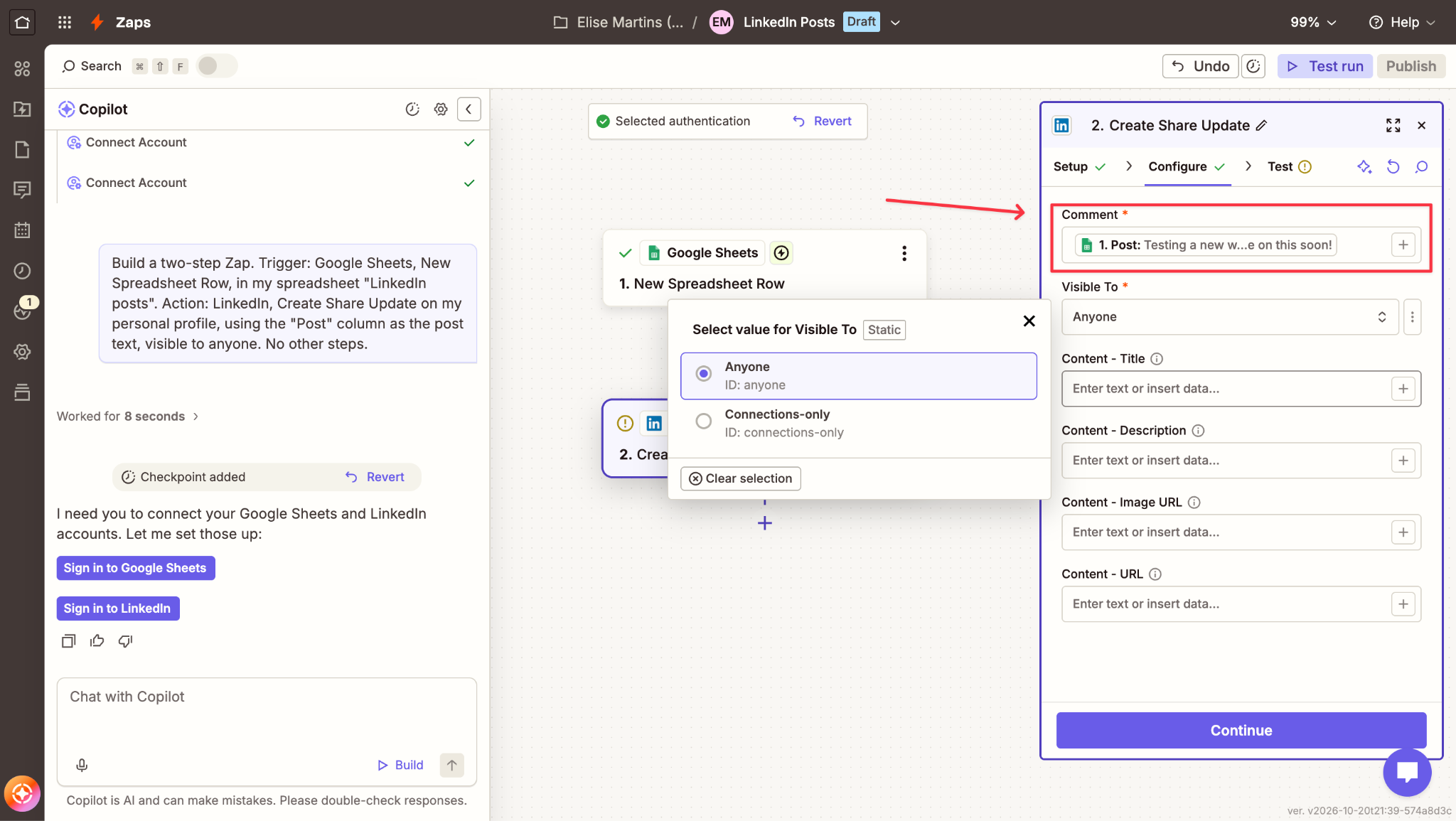
Set Visible To to Anyone, and leave the four Content fields empty.
I learned that one the hard way when I typed a test title and description into those fields, and the test failed with "Failed to create a share in LinkedIn." Those fields are for a link preview, so LinkedIn won't accept them without a Content - URL. Once I emptied them and clicked Retest step, it worked.
The test publishes a real post, so a few seconds later, this is what appeared on my LinkedIn profile:
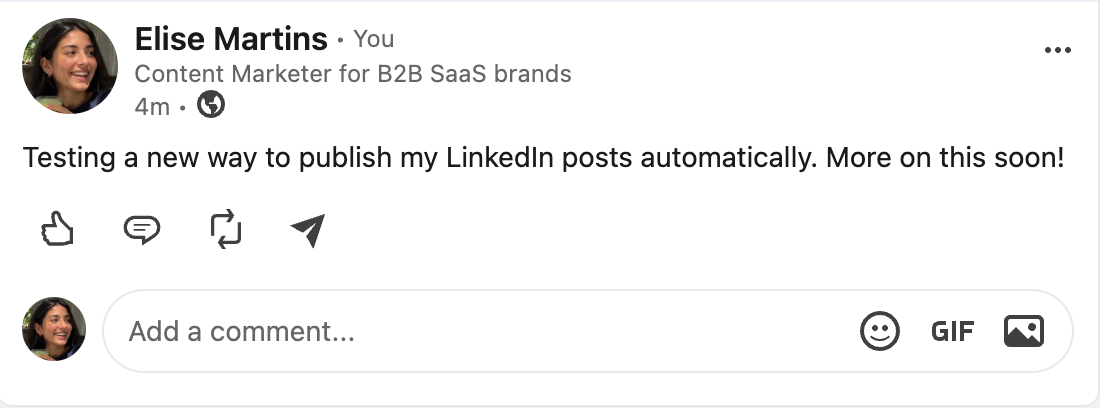
From now on, every new row in your sheet becomes a LinkedIn post. Zapier checks your sheet every 2 minutes on Pro, and every 15 minutes on the free plan, so a new post can take a little while to appear.
So, is it really a two-minute setup? Not the first time. Connecting the accounts went fast, but understanding what each field means (and why the test failed) took me longer than I expected. Once you know where everything is, though, the next Zap is much quicker.
What Else You Can Do With Zapier on LinkedIn
I tested the simplest setup (a Google Sheet and a personal profile), but the same idea works with other apps and a few extra steps. Once you know the basics, you can also:
- Share every new blog post automatically. Use your blog's RSS feed as the trigger, so each new article becomes a LinkedIn post.
- Post on a company page with the Create Company Update action, as long as you're an admin of that page.
- Schedule posts for a specific time. Fill the Publish at column in your sheet and add a Delay by Zapier step (Delay Until) between the trigger and LinkedIn. This needs a multi-step Zap, so it works during the Pro trial or on a paid plan. Not sure which times to pick? Our free Best Time to Post tool shows the best slots for your audience.
- Let ChatGPT write the post from an article or a newsletter, with a ChatGPT step before the LinkedIn action.
- Start from other apps like Notion, Airtable, YouTube, or Mailchimp, so a new video or newsletter turns into a post.
What Zapier Can't Do for Your LinkedIn Posts (Limitations)
Zapier does one job well: it moves your post from one app to LinkedIn. But after testing it, these are the gaps I'd keep in mind:
- It only publishes. It can't add a first comment, reply to comments, or engage with posts.
- You still write every post. Zapier publishes what's in your sheet, so the hardest part, coming up with posts worth reading, is still on you.
- Scheduling and AI writing cost extra. The free plan only runs two-step Zaps with 100 tasks a month, so adding a Delay or a ChatGPT step means upgrading once the 14-day trial ends. The next plan, Professional, costs $29.99/month billed monthly for 750 tasks, and every action step (like the ChatGPT one) uses tasks too, so an advanced Zap uses up your plan faster.
- The setup takes some learning. Field names like "Comment" and the Content fields aren't obvious, and one wrong field stops the post.
- Nobody is there when the post goes live. LinkedIn first shows every post to a small group, and the reactions and comments in that first hour decide whether it reaches more people.
Another Option: Post and Boost From Claude Code With Podawaa
If creating the content is what takes you the most time, there's an easier way. With Podawaa's Claude Code skill, you tell Claude Code what you want in one sentence, and it writes, publishes, schedules, and boosts the post for you.
Here's what it does that Zapier doesn't:
- Helps you write the post. Start from one of Podawaa's templates (stories, case studies, how-tos, opinions, and more), add your notes, and Claude turns them into a post. You can even turn your last blog articles into a week of posts in one instruction.
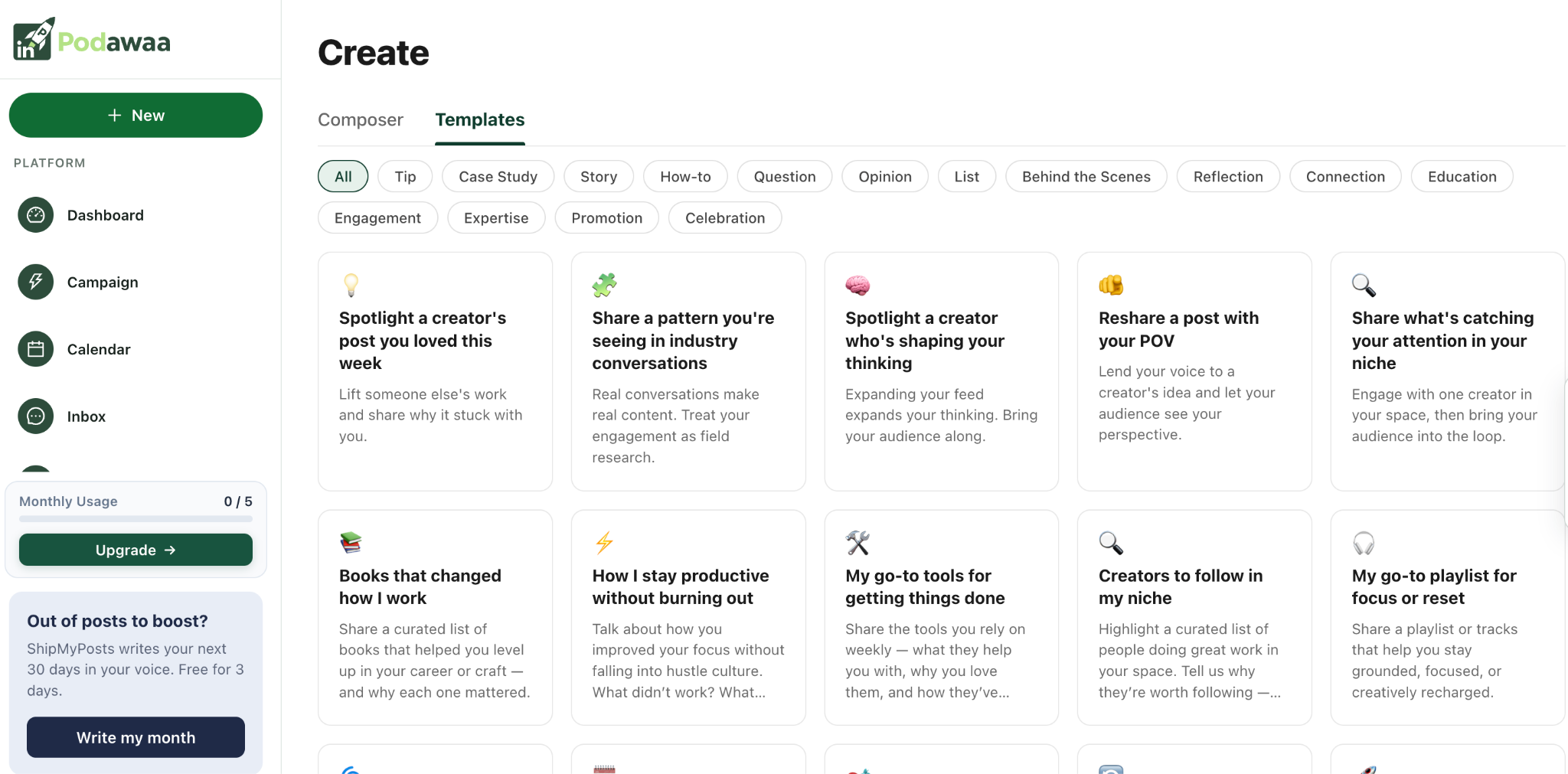
- Boosts the post in its first hour with reactions and comments from real LinkedIn members matched to your language and industry, and the comments respond to what your post says.
- Adds a first comment with your link, after a built-in 30-to-90-second delay.
- Sets up lead magnet posts, where the first people comment a keyword like GUIDE.
- Schedules up to 30 days ahead, with every post in your Podawaa calendar.
You can see the whole setup and a live demo in this 2-minute video:
And for every step explained, read our guide on how to post on LinkedIn from Claude Code.
Frequently Asked Questions
Can I automate my personal LinkedIn posts with Zapier for free?
Yes. A two-step Zap (Google Sheets → LinkedIn Create Share Update) runs on Zapier’s free plan, with 100 tasks a month. Each published post uses one task.
Why does Zapier call the post text "Comment"?
In the Create Share Update action, the Comment field is the text of your post, not a comment under it. Map your post column into that field.
Why did I get "Failed to create a share in LinkedIn"?
You probably filled Content - Title, Content - Description, or Content - Image URL without a Content - URL. Those fields build a link preview, so leave them empty unless you're sharing a link.
Can Zapier schedule LinkedIn posts?
Yes, with a Delay by Zapier step set to Delay Until and a date column in your sheet. This needs a multi-step Zap, so it works during the 14-day Pro trial or on the Professional plan ($29.99/month billed monthly).
Can I post to a LinkedIn company page with Zapier?
Yes, with Create Company Update, as long as your account is an admin of the page.
Can Zapier add a first comment or boost my LinkedIn post?
No. Zapier's LinkedIn app only publishes posts. To add a first comment or get early reactions and comments, you can use Podawaa with Claude Code.
What's an easier alternative to Zapier for LinkedIn posts?
If you write with AI, Claude Code with Podawaa's skill lets you write, publish, schedule, and boost a post with one sentence. For more options, see our list of the best LinkedIn posting APIs.