
If you write your LinkedIn posts in Claude Code, you know the last part: copy the draft, open LinkedIn, paste it, fix the formatting, then schedule the next one in another tool.
This guide shows you how to send the post straight from your terminal, and how to make sure people actually see it once it's live.
The 2-minute video below walks through the full setup and a live demo. Watch it first and follow along, or skip to the written steps:
Quick answer
Claude Code can't publish to LinkedIn on its own. It needs a publishing API with permission to post for you. With Podawaa, the setup takes three steps and about two minutes:
- Create an API key in Podawaa under Settings → API & Claude Code.
- Save the Podawaa skill file in your project's .claude/skills/podawaa/ folder.
- Add the key to your environment as PODAWAA_API_KEY.
Then type one sentence, like "Publish this post on LinkedIn now and boost it with 50 likes and 10 comments," and Claude Code publishes, schedules, or boosts the post for you.
Why Claude Code Needs a Publishing API
LinkedIn only accepts posts from apps it has approved to publish on your behalf, and Claude Code isn't one of them. So you have three ways to connect it:
- Build your own LinkedIn API integration. You create a developer app, request publishing permissions, set up OAuth, refresh tokens, and maintain it every time LinkedIn changes its API. Full control, but it's a development project.
- Connect an MCP server. An MCP server gives Claude new tools to call. Some LinkedIn MCP servers publish posts, but many only read LinkedIn data, so check what yours does.
- Use a Claude Code skill connected to a publishing API. A skill is a small instruction file (SKILL.md) that teaches Claude a specific job. The Podawaa skill teaches Claude to use the Podawaa API, and Podawaa manages the LinkedIn connection for you.
This guide uses the Podawaa skill: no code to write, nothing extra running on your computer, and no LinkedIn developer setup.
The same Podawaa API also connects to Zapier, Make, and GitHub Actions. To publish from a visual workflow (for example, every new Airtable or Notion row becomes a LinkedIn post), follow our guide on how to automate LinkedIn posts with Zapier. To compare all your options, see the best LinkedIn posting APIs.
What You Need Before You Start
- Claude Code installed on your computer
- A LinkedIn account connected to Podawaa
- A Private Accelerate or Private Dominate plan (the Free and Community plans don't include API access)
- A Podawaa API key, which you create in Step 1
You can test the whole workflow during Podawaa's 7-day free trial and compare plans on the pricing page.
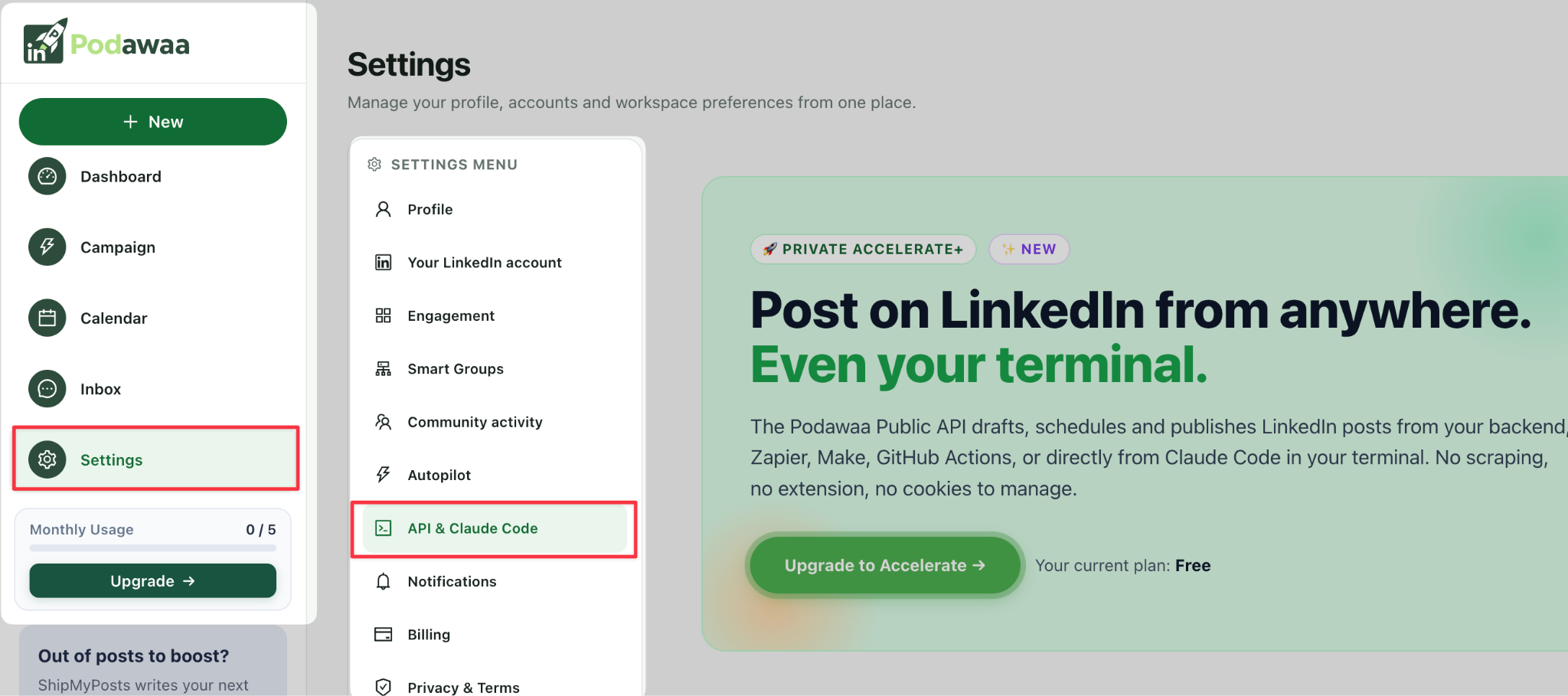
Here's the API & Claude Code page in Podawaa settings, where you'll create your key and download the skill:
Step 1: Create Your Podawaa API Key
The API key works like a password for apps. Podawaa reads it to recognize your workspace and the LinkedIn accounts connected to it, so Claude Code never needs your LinkedIn password.
- Go to Settings → API & Claude Code in Podawaa.
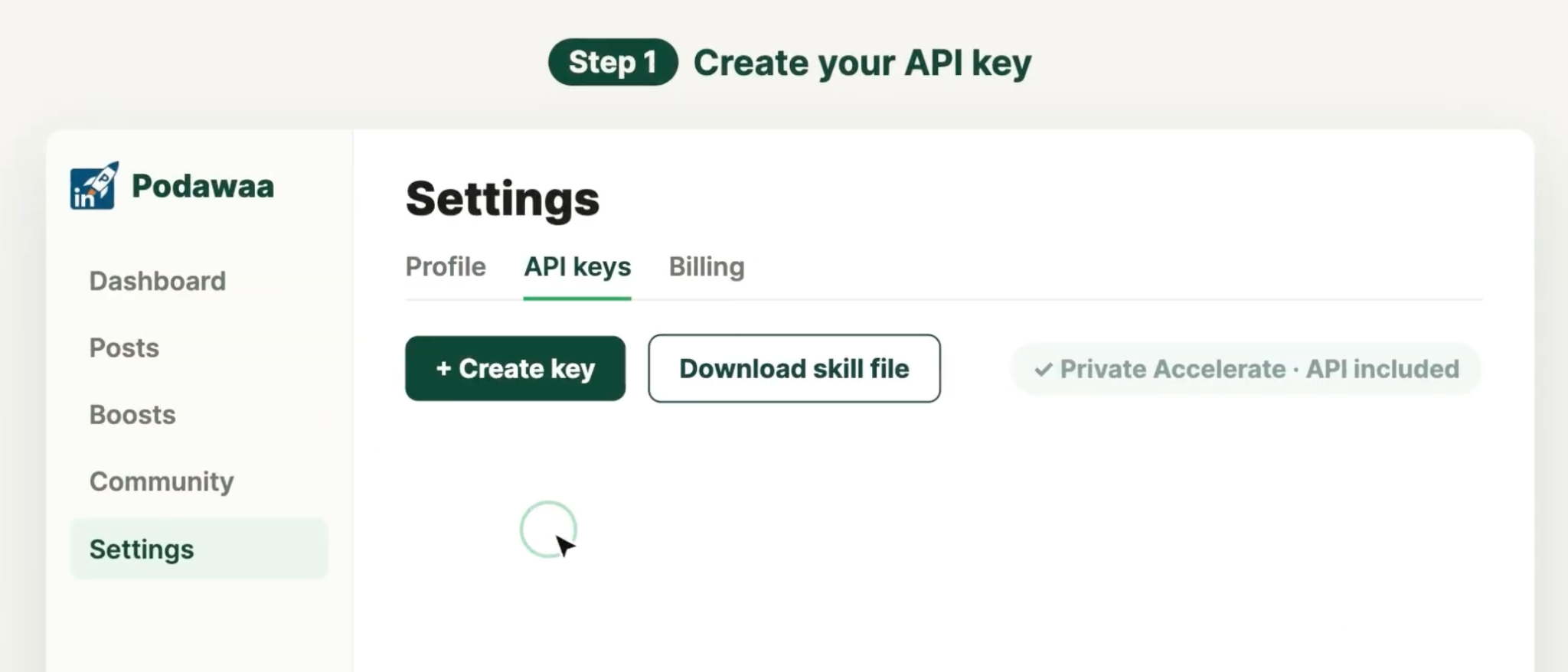
- Click Create API key.
- Copy the key and save it somewhere secure, like a password manager. Podawaa shows it only once.
Both the API key and the skill file you’ll need in Step 2 are on the same settings page:
Create one key per tool (Claude Code, Zapier, Make). If one key leaks, you revoke it in one click, and your other integrations keep working.
Step 2: Add the Podawaa Skill to Your Project
The API key gives Claude Code access to Podawaa. The skill file teaches Claude how the Podawaa API works: how to find your LinkedIn accounts, publish, schedule, boost, and add first comments. You don’t need to write or edit it.
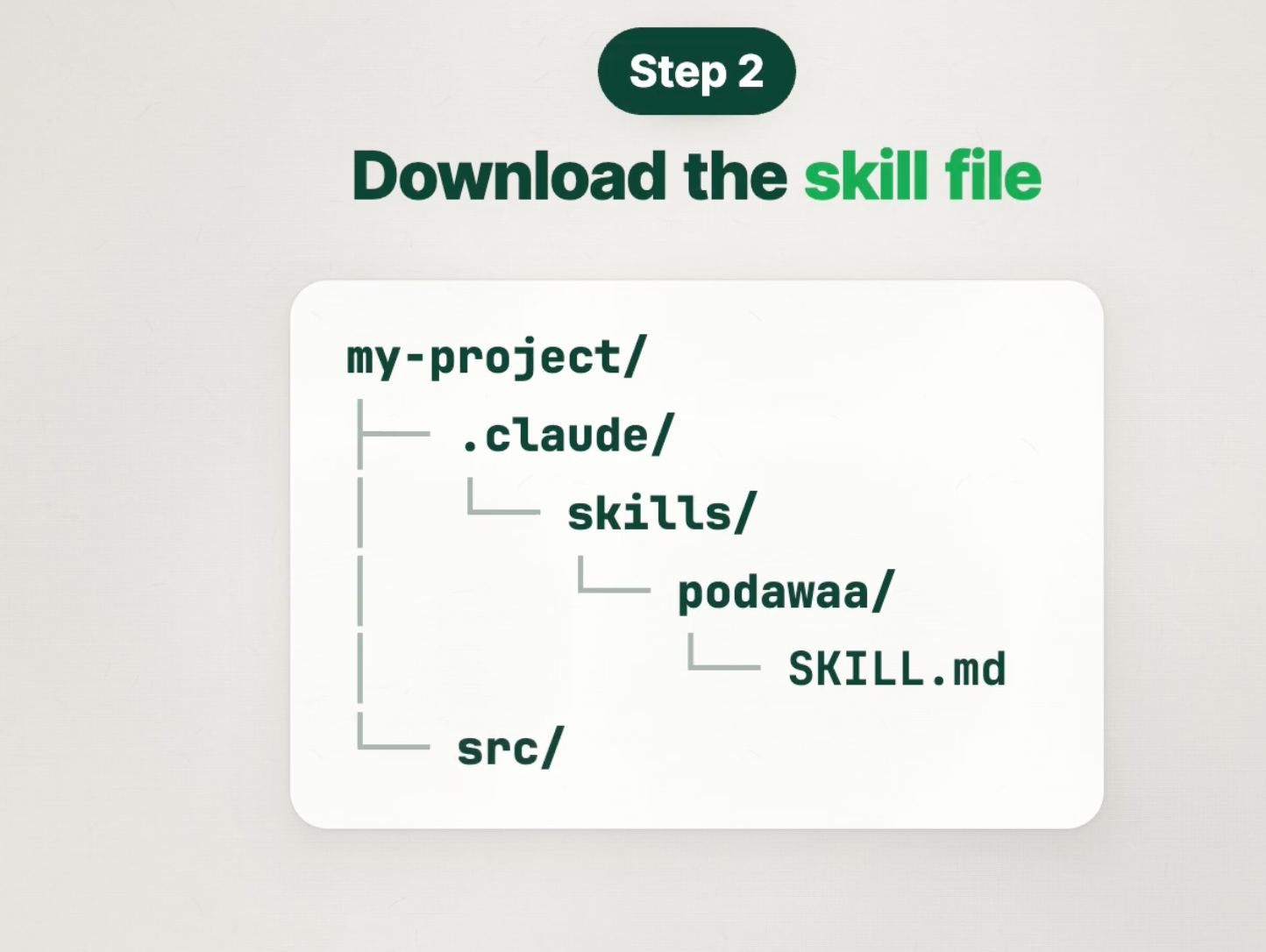
Download the skill file from the same API & Claude Code page and save it here, inside the project where you use Claude Code:
.claude/skills/podawaa/SKILL.md
No .claude/skills/ folder in your project yet? Create it, add a podawaa folder inside, and drop the file in. Your project should look like this:
Step 3: Add Your Key and Test the Connection
Add the key you copied in Step 1 to your environment as PODAWAA_API_KEY. The skill uses it to connect Claude Code to your Podawaa account, and that’s it: you’re ready to post.
Tip: Always post to the same account and time zone. Add one line to your project's CLAUDE.md file (Claude Code reads it at the start of every session), like "When publishing with Podawaa, use my personal profile and the Europe/Paris time zone." Claude then applies it to every post.
Step 4: Write the Post Before You Publish
If you already have a finished post, then paste it into your instruction and skip to Step 5. But if you are starting from a blank page, then give Claude an angle and your own details. Without them, Claude fills the gaps with the same generic phrases every AI post uses, and readers scroll past.
Podawaa's template library gives Claude that angle. It holds ready-made post ideas sorted by type (Tip, Case Study, Story, How-to, Question, Opinion, Behind the Scenes, Reflection, and more) under Create → Templates.
You pick the angle that matches what you have to share this week, add your notes and results, and Claude writes the post in your voice.
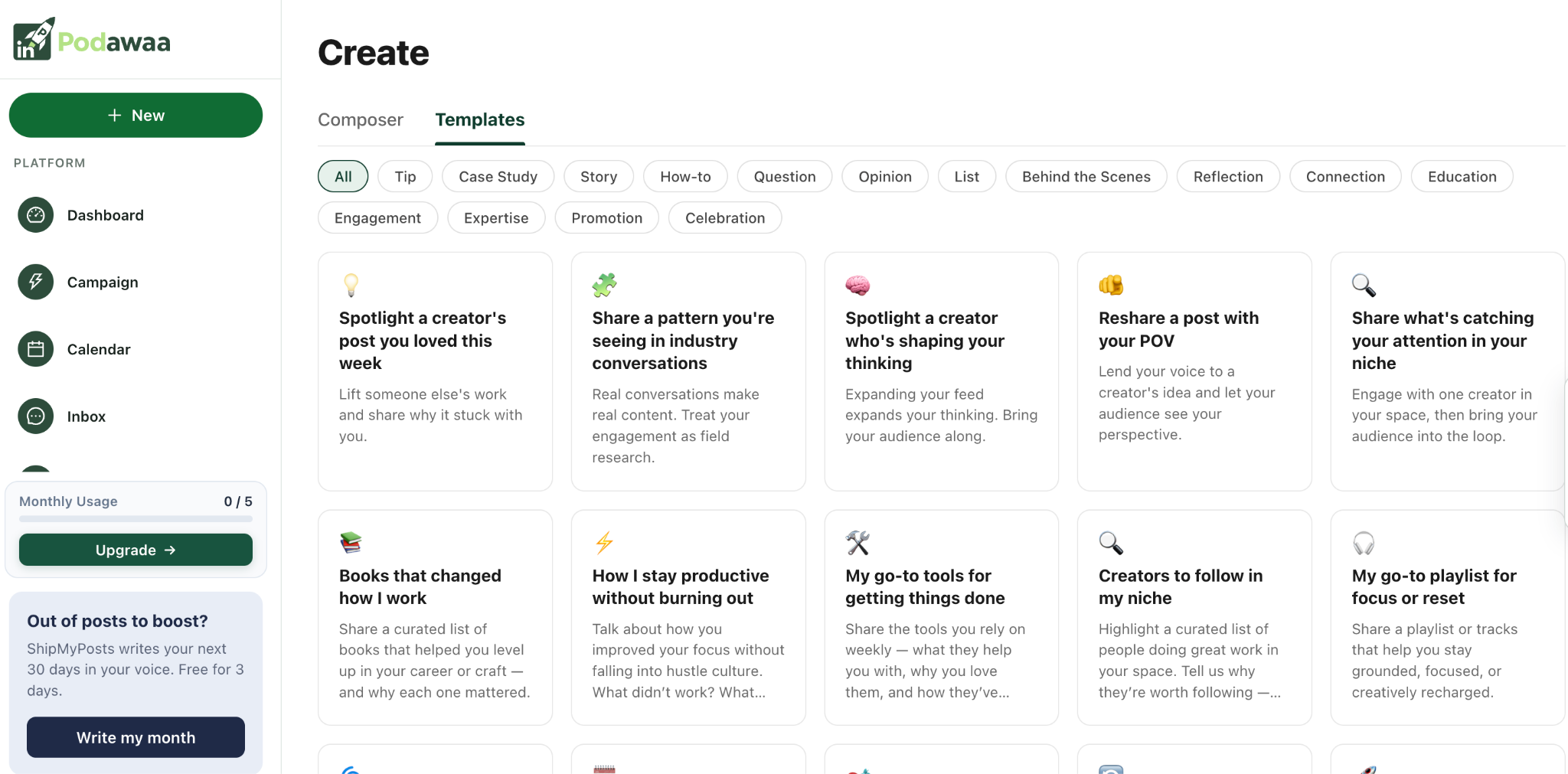
For example, with the template "Share a pattern you're seeing in industry conversations":
Use this LinkedIn post angle: Share a pattern you're seeing in industry conversations.
Here are my notes: [YOUR OBSERVATIONS AND EXAMPLES]
Turn them into a LinkedIn post and show me the draft before publishing.
Asking for the draft first lets you fix anything that doesn't sound like you. For more angles, see our LinkedIn storytelling post examples and content pillars guide.
Before you publish, check two things that are easy to miss in a terminal:
- The first two lines. LinkedIn cuts posts after about two lines on mobile, so the opening decides who taps "see more." You can compare openings with our free LinkedIn Hook Tester.
- The formatting. LinkedIn doesn't support Markdown, so Claude's **bold** shows up as asterisks. Ask Claude to write without Markdown, and add bold or italic text with our free LinkedIn Text Formatter.
Step 5: Publish, Schedule, and Boost From Claude Code
Each action below takes one sentence, and you can combine them in a single instruction (schedule a post, add a first comment, and boost it at once).
Publish a post now
Publish this post on LinkedIn now: [PASTE YOUR POST]
Schedule a post for later
Schedule this post for Monday at 9 AM (Europe/Paris): [PASTE YOUR POST]
- Add a time zone. Your computer, your Podawaa workspace, and your audience can sit in different time zones, and the post should go out when your audience is online. Our free Best Time to Post tool shows the best slots in your time zone.
- Schedule up to 30 days ahead.
Boost a post in its first hour
LinkedIn first shows a new post to a small group. Reactions and comments in the first hour push it to more people, and a quiet first hour stops its reach, however good the post is (more on this in your first 60 minutes on LinkedIn).
A boost gives your post that early engagement:
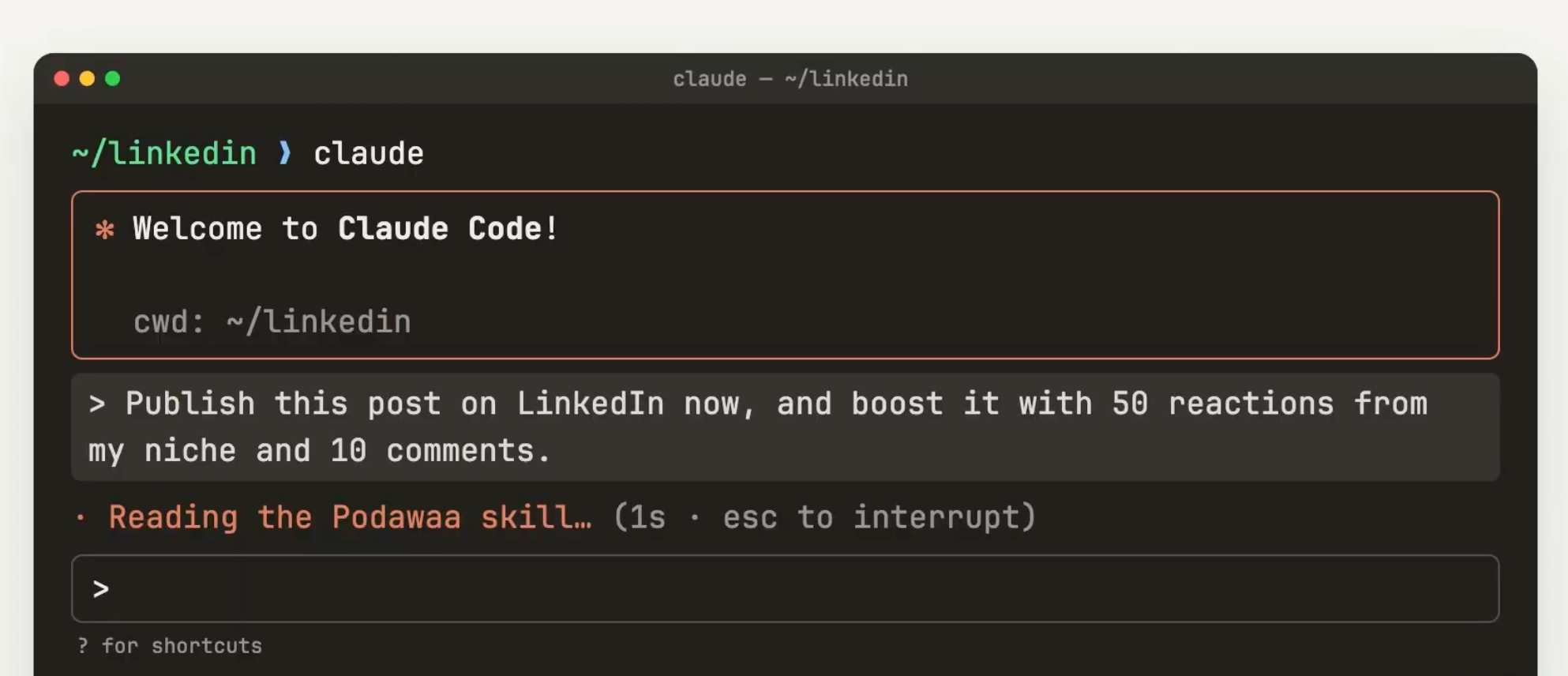
Publish this post on LinkedIn now and boost it with 50 likes and 10 comments: [PASTE YOUR POST]
Here’s that instruction in Claude Code, as it starts reading the Podawaa skill:
- Real people from your niche. Podawaa members react from their own LinkedIn accounts, matched to your post's language and industry by Jev, Podawaa's matching engine (how Jev picks who engages).
- Comments written for your post. Each comment responds to what your post says, not "Great post!" or "Thanks for sharing."
- Gradual delivery. Engagement arrives over a few hours, the way it builds on a post that's taking off.
- Up to 250 reactions and 50 comments per post, depending on your plan (up to 100 reactions and 20 comments on Accelerate).
Boosting is optional, and it won't save a post with nothing to say. It gives a good post a fair chance to reach the right people.
Add a first comment
Many creators share links in the first comment to keep the post focused on the idea:
Publish this post on LinkedIn now, then add this as the first comment: [YOUR COMMENT OR LINK]
Podawaa posts the comment after a built-in 30-to-90-second safety delay.
Schedule a lead magnet post
A lead magnet post asks readers to comment a keyword (like GUIDE) to get a resource. People comment more when they see others already asking, so Podawaa adds the first keyword comments for you:
Schedule this post for Monday at 9 AM (Europe/Paris) and add a lead magnet where at least 20 people comment the word GUIDE: [PASTE YOUR POST]
Claude sets the time and the lead magnet in one go, and you send the resource to everyone who asks.
Turn your articles into a week of boosted posts
Point Claude to your blog articles or newsletters, and it writes, spaces out, schedules, and boosts the posts:
Turn the last 3 articles in my /blog folder into LinkedIn posts, publish one per day at 10 AM (Europe/Paris), and boost each one.
Here’s what it looks like in the terminal: Claude reads the 3 articles, writes 3 posts, and schedules each one with a boost for Wednesday, Thursday, and Friday at 10:00:
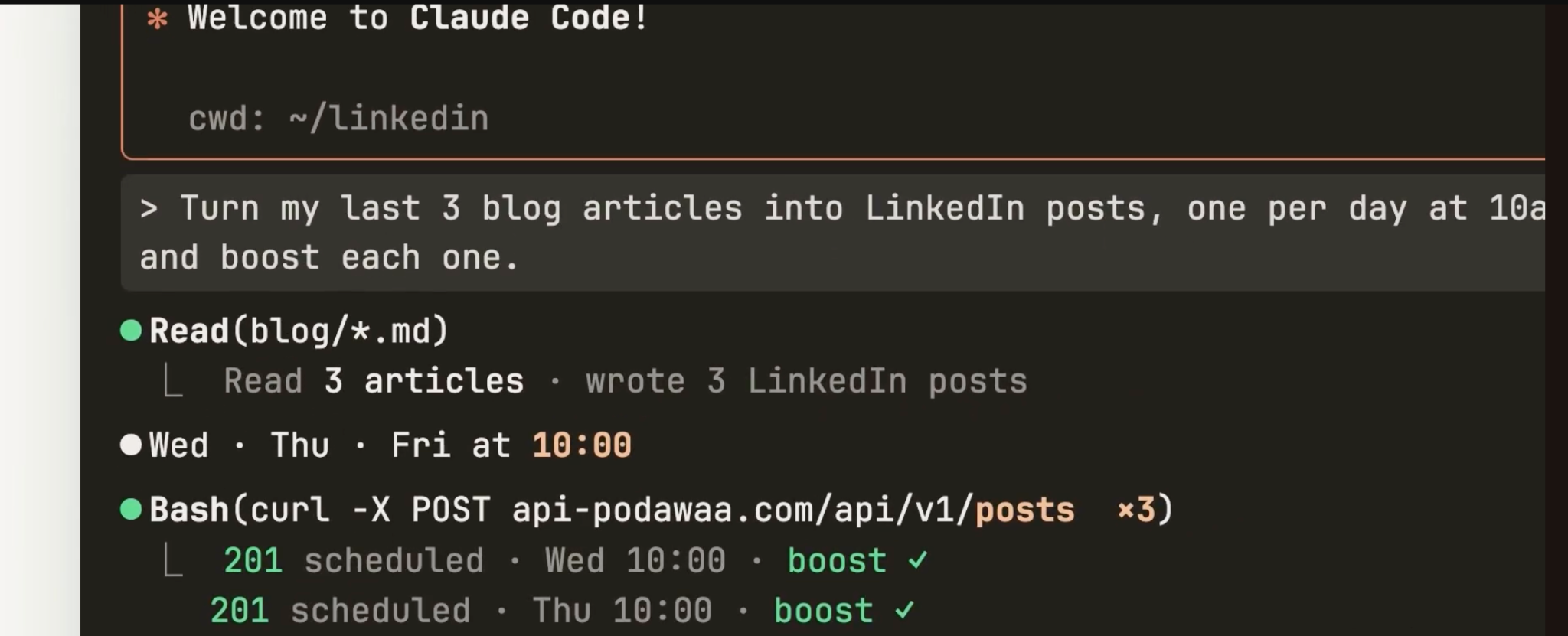
The same instruction works for a full month of content. Podawaa spreads the publishing out on its side to stay within LinkedIn's limits.
What Claude Code Does After You Send an Instruction
- Lists the LinkedIn accounts connected to your Podawaa workspace.
- Asks which account to use when you have more than one.
- Checks the post against LinkedIn's limits (3,000 characters).
- Sends one request to Podawaa with the post and your options.
- Returns the post ID and status in your terminal.
A post you publish right away goes live within about a minute. A scheduled post goes live at the time you set, and boosted reactions and comments start arriving after that.
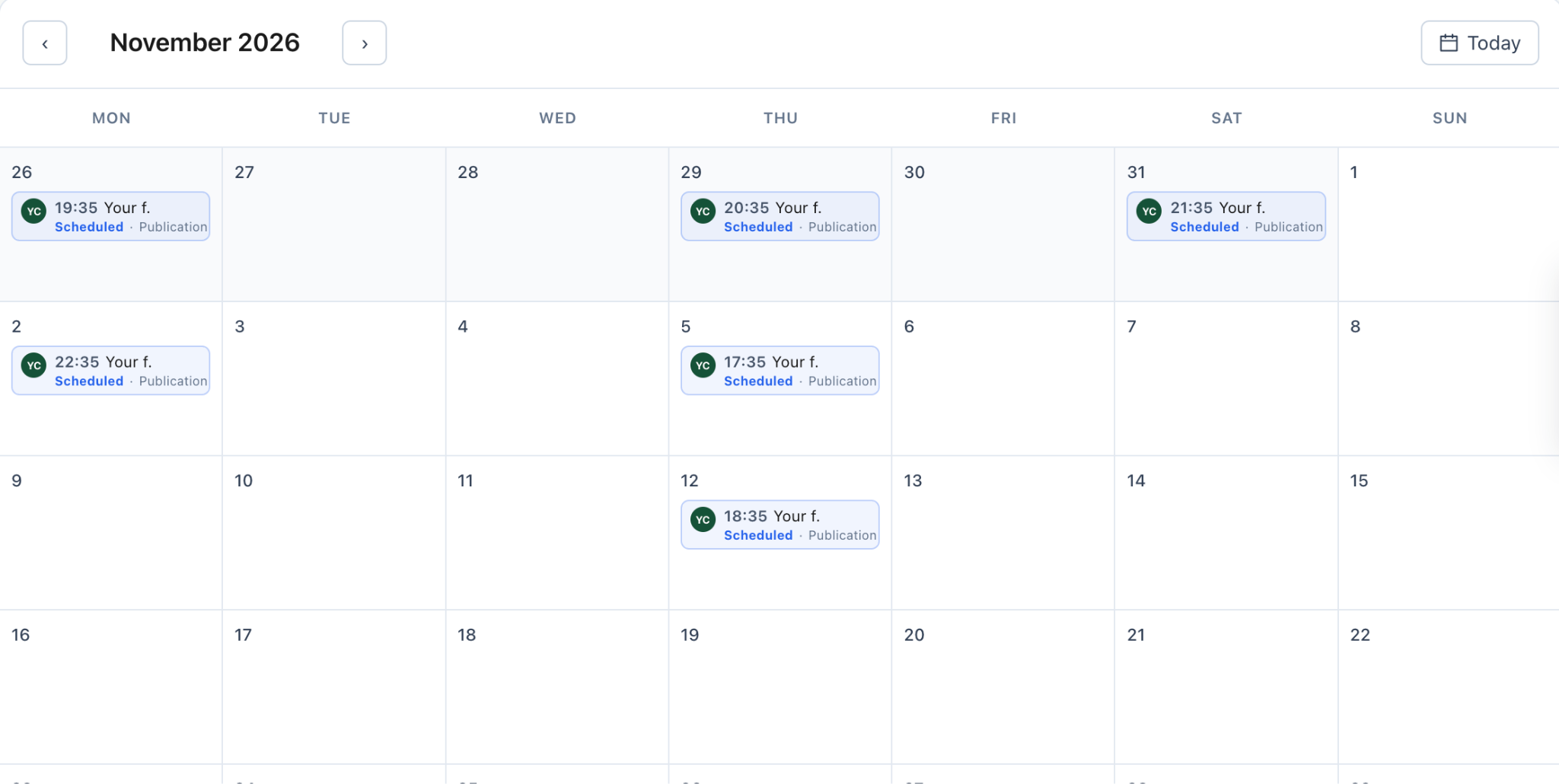
Every scheduled post also appears in your Podawaa calendar, where you can check or move it:
Replies in the first hours also help a post reach more people. Podawaa's Comments Inbox collects every comment on your posts in one place and suggests AI replies you can edit before sending.
Post for Several LinkedIn Accounts
If you are managing LinkedIn for clients or a team, Claude Code reaches every account connected to your Podawaa workspace. Name the account in your instruction:
Schedule this post on Sarah's LinkedIn profile for Tuesday at 8 AM (Europe/London): [PASTE YOUR POST]
You can prepare a week of content for several clients in one session, without logging in and out of each account. See the price per extra account in the agencies section.
Start Posting From Claude Code
Write, publish, schedule, and boost your LinkedIn posts in one conversation. Start your 7-day Podawaa trial and send your first post from Claude Code.
Frequently Asked Questions
Can Claude Code post directly to LinkedIn?
No. Claude Code needs a publishing API with permission to post to your account. The Podawaa skill connects it to the Podawaa API, which publishes and schedules posts for you.
What's the difference between a Claude Code skill and an MCP server?
A skill is an instruction file that teaches Claude a specific job, like using the Podawaa API. An MCP server is a separate service that gives Claude new tools. Both can connect Claude Code to LinkedIn. The Podawaa skill needs one file and one API key.
Do I need coding experience to set this up?
No. You create an API key, save one file in your project, and add the key to your environment. The setup takes about two minutes.
Which Podawaa plan includes the Claude Code skill?
Private Accelerate and Private Dominate. You can test it during Podawaa's 7-day trial.
How many reactions and comments can I request per boost?
Up to 250 reactions and 50 comments per post on Dominate, and up to 100 reactions and 20 comments on Accelerate.
Does Claude Code see my LinkedIn password?
No. Claude Code connects with your Podawaa API key, and Podawaa manages your LinkedIn connection.